Stock images are everywhere. While they serve their purpose, there’s a growing problem: your competitors might be using the exact same photos you are. When potential customers notice this during their research, it can create doubt about your brand’s authenticity.
AI image generation offers a compelling solution. Tools like Google’s Imagen (accessed through Gemini) can create unique visuals tailored specifically to your brand. But there’s a catch—poorly generated images with obvious AI artifacts can be just as damaging as generic stock photos.
In this guide, we’ll walk through practical techniques for generating professional, believable imagery that strengthens rather than undermines your brand identity.
Getting Started with AI Image Generation
Before diving in, a few setup tips:
- Enable advanced features: In Gemini, make sure the “thinking” feature is enabled to access the latest image generation models
- Start fresh when needed: If your outputs start going off-track, begin a new conversation with a focused prompt rather than trying to course-correct
- Quality over quantity: High-iteration sessions often produce diminishing returns—sometimes fewer, more intentional prompts yield better results
Prompting Strategies That Work
The key to great AI-generated images is specificity. Here’s what we’ve learned:
Be direct and detailed. While conversational prompting can work, the model responds best to clear, specific instructions. Instead of “make it look more professional,” try “the subject should be wearing a navy polo shirt with the company logo on the left chest, standing in a modern office with floor-to-ceiling windows.”
Vary your compositions. When generating multiple images, explicitly describe different subject placements and angles. Without this guidance, the model tends to produce similar compositions across images, creating an obviously staged feel.
Use reference images liberally. This is perhaps the most important tip. Uploading reference images for uniforms, logos, color palettes, or even desired aesthetics produces dramatically better results than text descriptions alone.
Handling Technical Quirks
A few gotchas to be aware of:
The download bug: The direct download feature sometimes captures an intermediate generation step rather than the final output. Always right-click to save the preview image, and compare your saved file against what you expected.
Resolution considerations: Downloaded files are raw PNGs while previews are compressed JPEGs. For web use, the JPEG preview is often sufficient. For print or large displays, consider upscaling the PNG with a dedicated tool.
When Images Need a Little Help
Sometimes you’ll get an image that’s 90% perfect but has one element that breaks the illusion. Rather than entering a prompt loop hoping the AI fixes the right thing (it often “fixes” something else instead), consider compositing.
Here’s an example. We generated two images that each had minor issues:


By combining the best elements of each, we arrived at this final result:

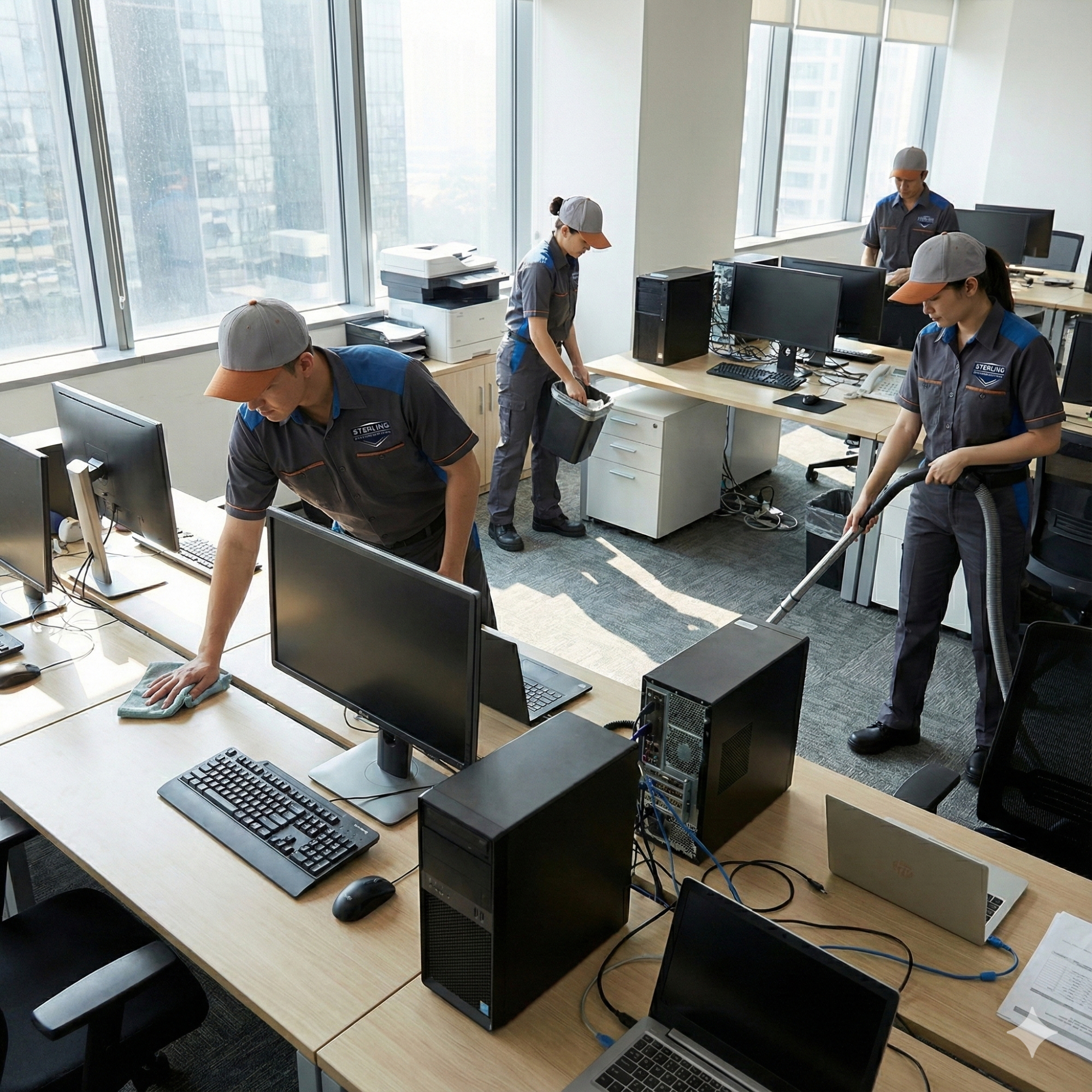
Another common issue is what we call “mild hallucinations”—elements that look plausible at first glance but don’t hold up to scrutiny. In this office scene, the AI placed laptops where monitors should be, creating an unusual (and unrealistic) setup:
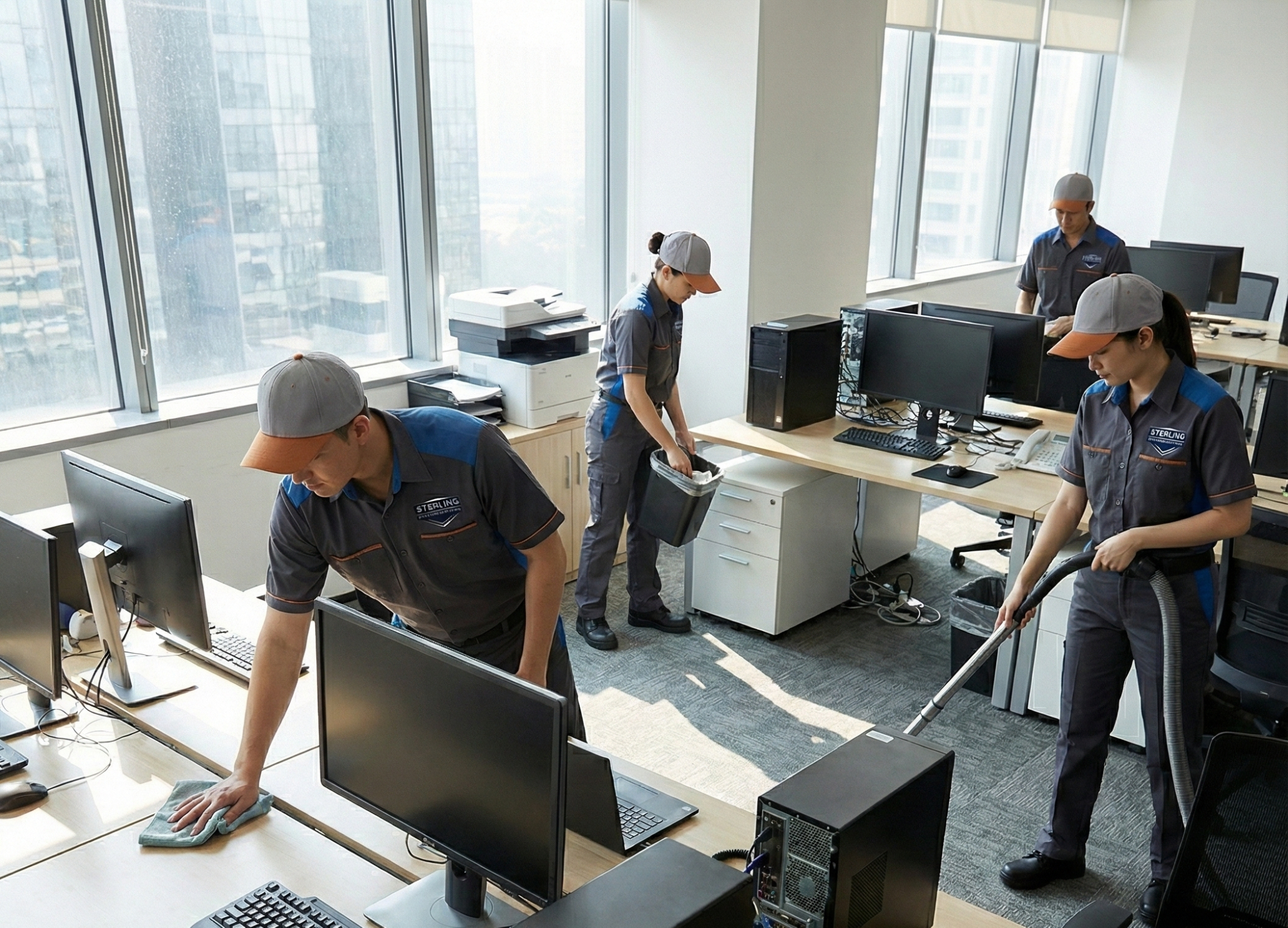
A simple crop eliminated the problematic area while preserving the usable portion:
Case Study: Building a Unified Brand Identity
Let’s walk through a real project: creating branded imagery for an industrial cleaning company.
The goal was to generate images featuring workers in company uniforms that felt authentic and consistent. We started with a detailed prompt including the company’s color palette:
“Sterling Commercial Solutions is an industrial cleaning company. Our brand colors are sterling silver (#b7bcc2), deep slate (#434a54), mountain blue (#2e5d89), lake mist (#e7eef3), and warm copper (#c67133). Design a uniform for our workers and generate an image of our crew cleaning a modern office space.”
The first output defaulted to generic janitorial stock-image aesthetics:
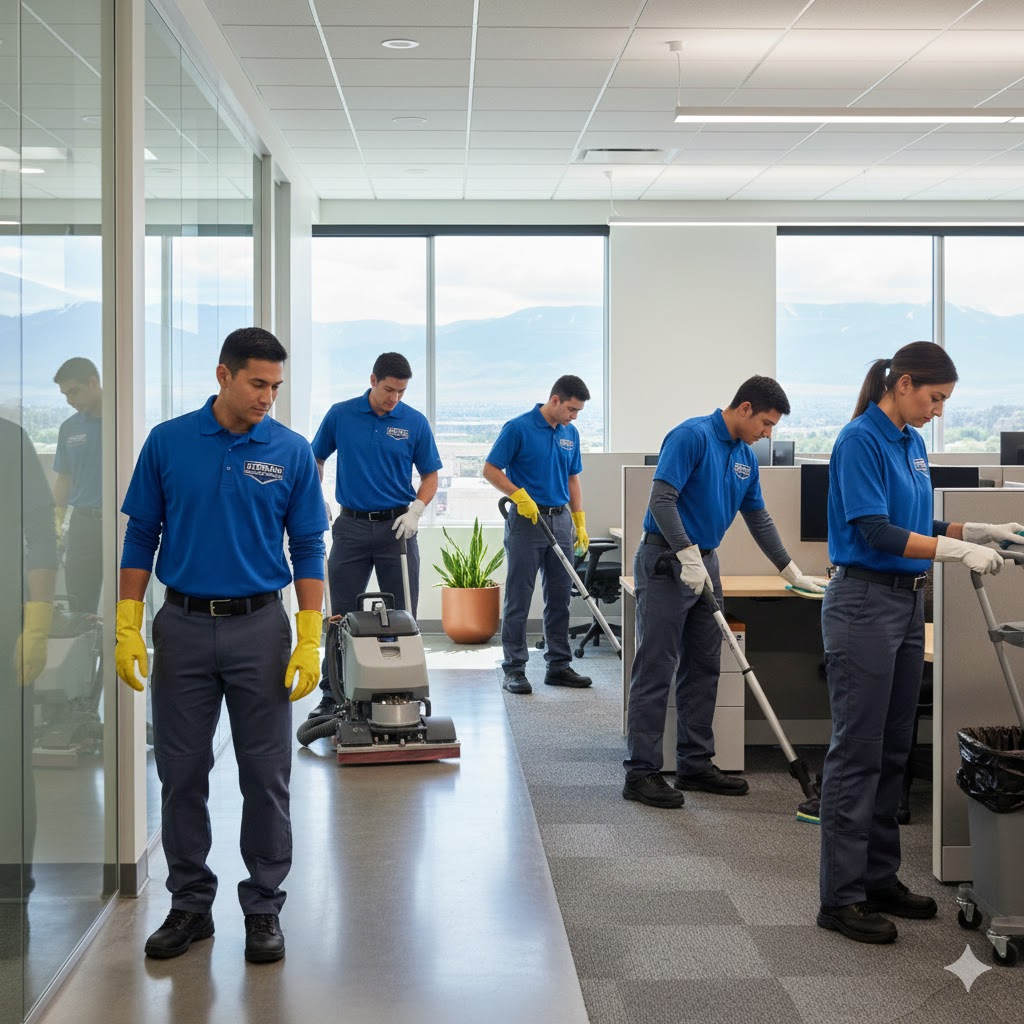
After specifically requesting the color palette be applied to the uniforms:

Finally, after uploading the company logo as a reference:

We then extracted the uniform design as a standalone reference for future sessions:
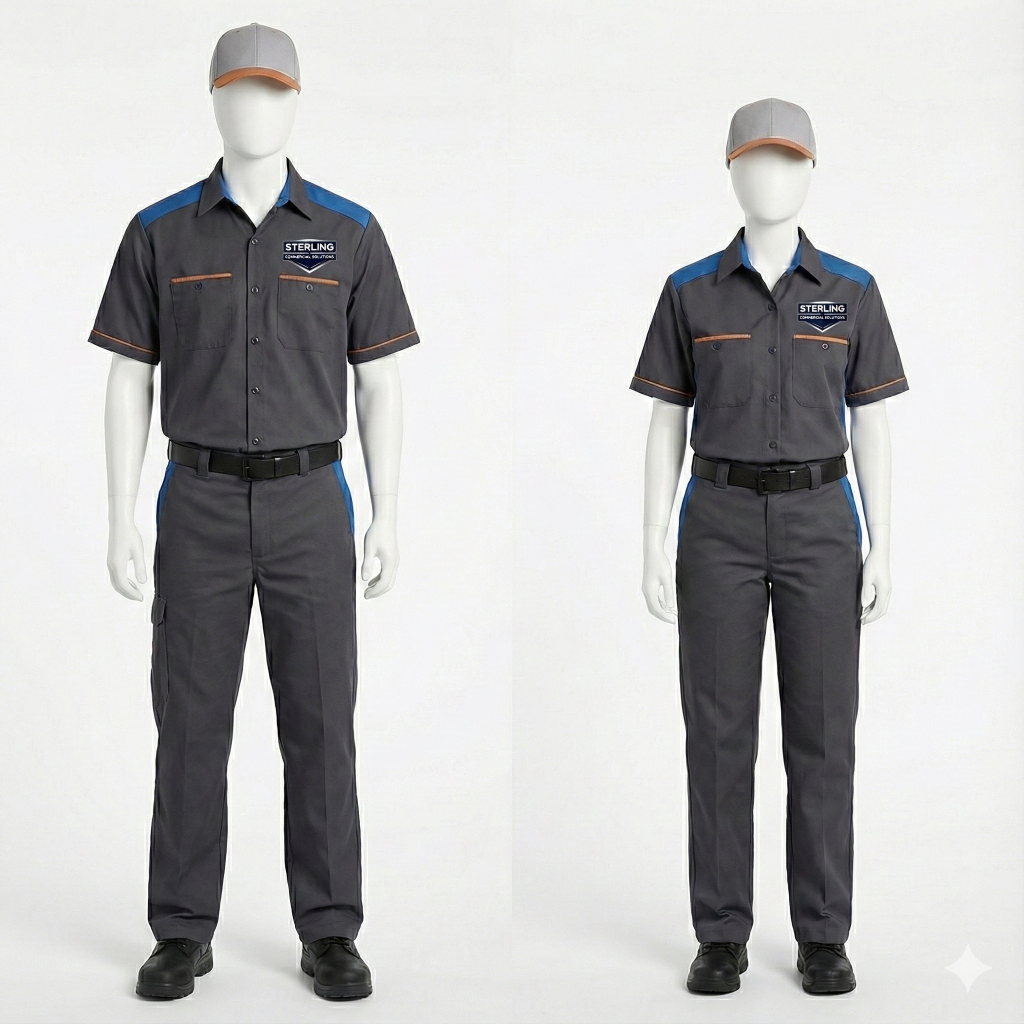
This reference image can now be used to maintain consistency across all future image generation, even in new conversations.
Key Takeaways
- Reference images beat text descriptions for maintaining brand consistency
- Start new conversations when outputs veer off course
- Verify your downloads match the preview
- Composite when needed—it’s often faster than prompt iteration
- Request peer review—fresh eyes catch inconsistencies you’ll miss
AI image generation isn’t a magic button, but with the right techniques, it’s a powerful tool for creating distinctive brand imagery that sets you apart from the stock-photo crowd.
Further Reading
- Achieving Photo Realism with AI — Detailed prompting techniques for candid-looking photography
- Maintaining Character Consistency — Tips for keeping subjects consistent across multiple generations